
Designs made of several parts
A housing and its lid are two parts, not one lump. Ask for an assembly and every part arrives named, selectable and exportable on its own, and a STEP file from any CAD system behaves exactly the same way.
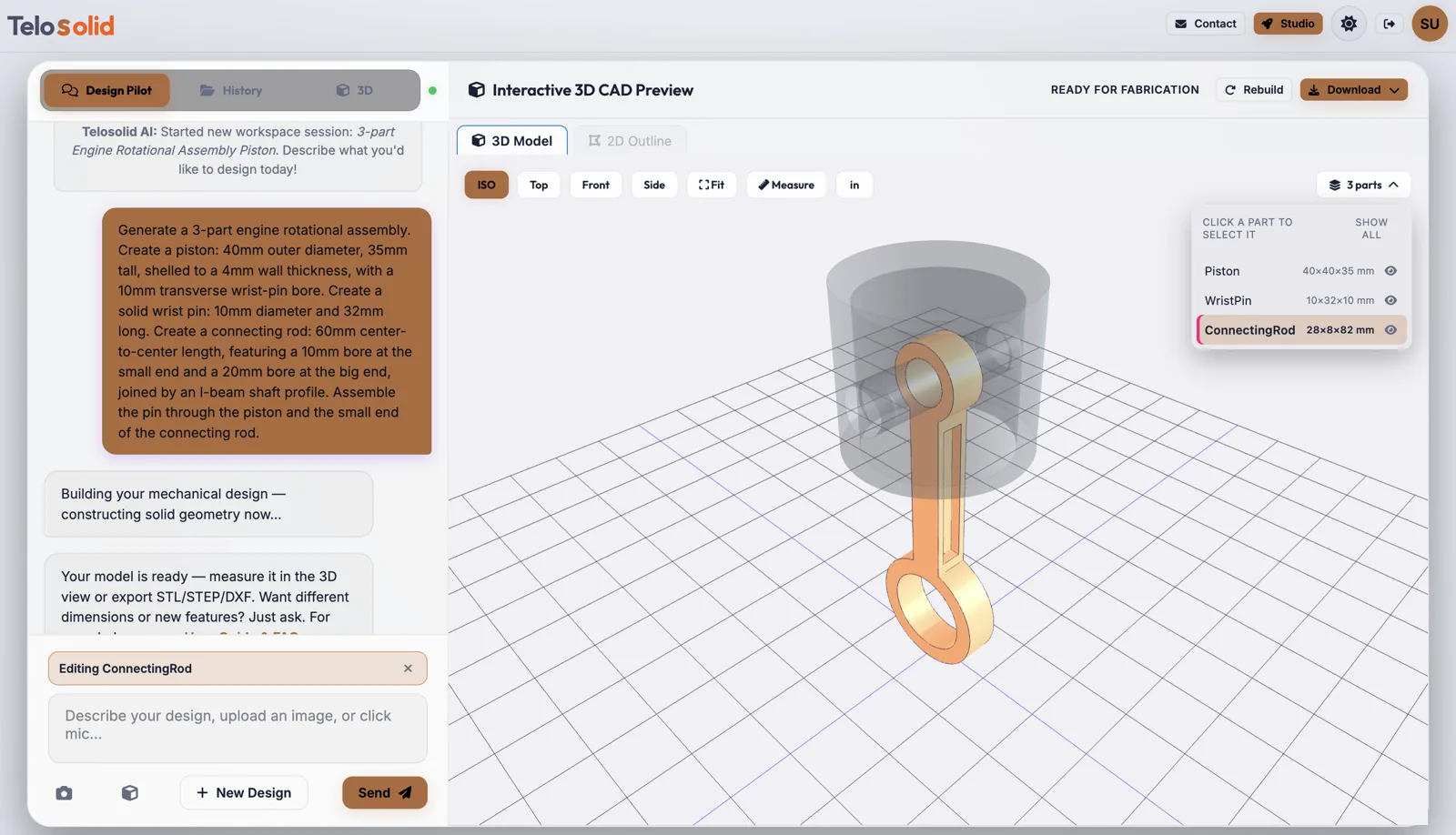
Parts, not a lump
Ask for “an enclosure with a separate lid” or “a piston, wrist pin and connecting rod” and you get one design made of named parts. The parts panel lists each one with its size. Click a row, or click the part in the 3D view, to select it; the two always agree.
Features are not parts. A bracket with four holes is one part with four holes, not five objects, so an ordinary design never grows a parts panel it does not need.
Change one part and leave the rest alone
With a part selected, the next message applies to that part only. “Make it 2 mm thicker” thickens the connecting rod and nothing else; the piston and the pin are rebuilt exactly as they were. A chip above the message box names the part you are editing, and one click clears it to edit the whole design again.
This is the difference between a change and a fresh guess: the design is rebuilt from its own history, so everything you did not mention stays put.
Check that two parts fit
Press Check fit in the parts panel and choose two parts. A few seconds later you get one of three answers: they clash, with the shared material shown in red and its volume; they touch, meeting with no gap and no overlap; or they are clear, with the smallest gap drawn as a line between the two closest points.
It works on imported STEP files as well as designs built here, and it states the number rather than a pass or fail: how much clearance a print or a press fit needs is your call. Parts are checked as they sit, not in motion.
What you see is what you export
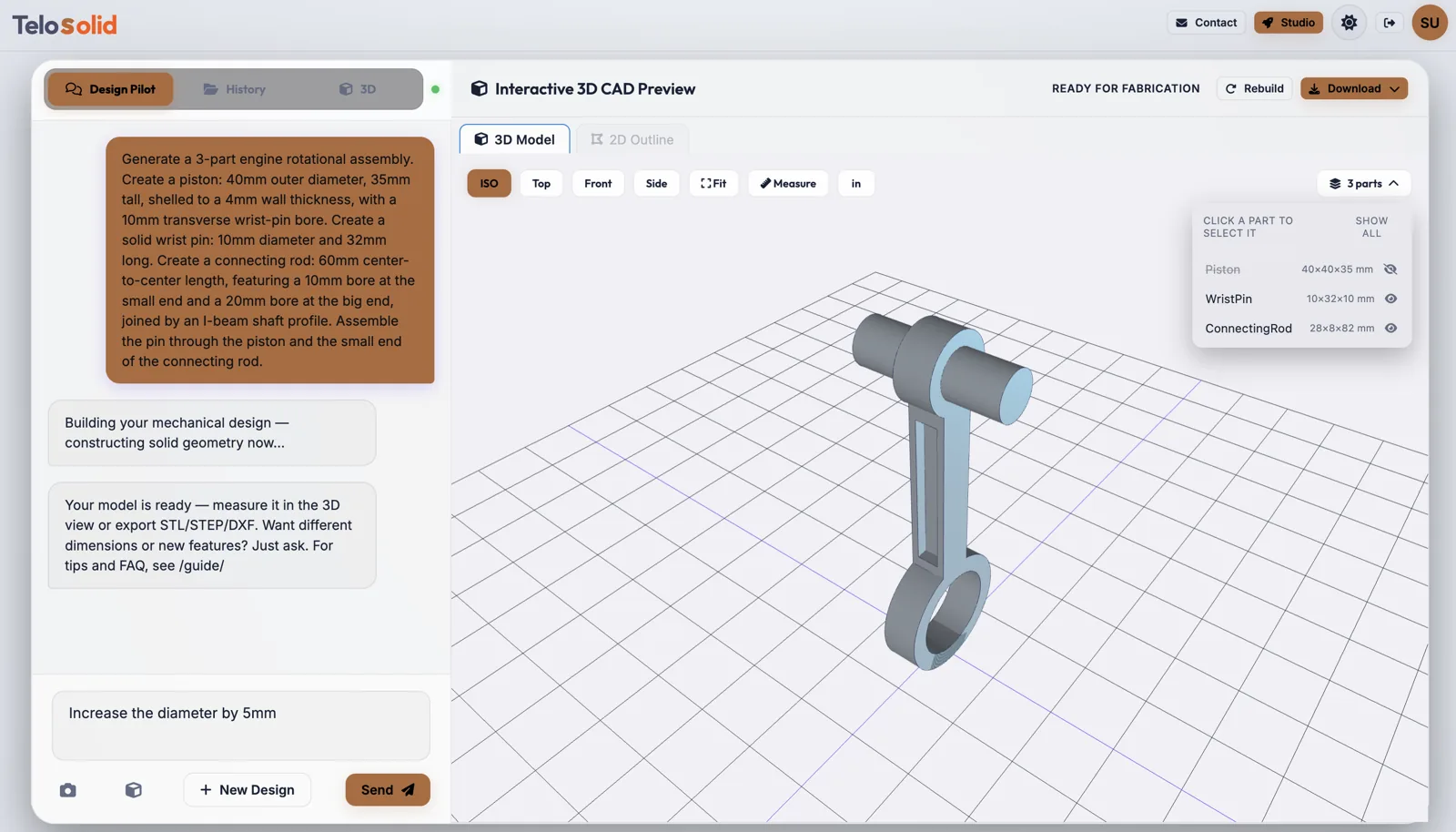
Hide a part with its eye icon and it leaves the viewport, and every export with it. The STL, the STEP, the DXF and the manufacturing drawing all contain exactly what is on screen:
- Everything visible: the whole design.
- One part selected: that part alone, named after the design and the part.
- Some parts hidden: only the ones still showing, combined into one file.
So a drawing of the lid alone, or an STL of just the three parts you want to print, is a matter of hiding the rest, not of editing the model.
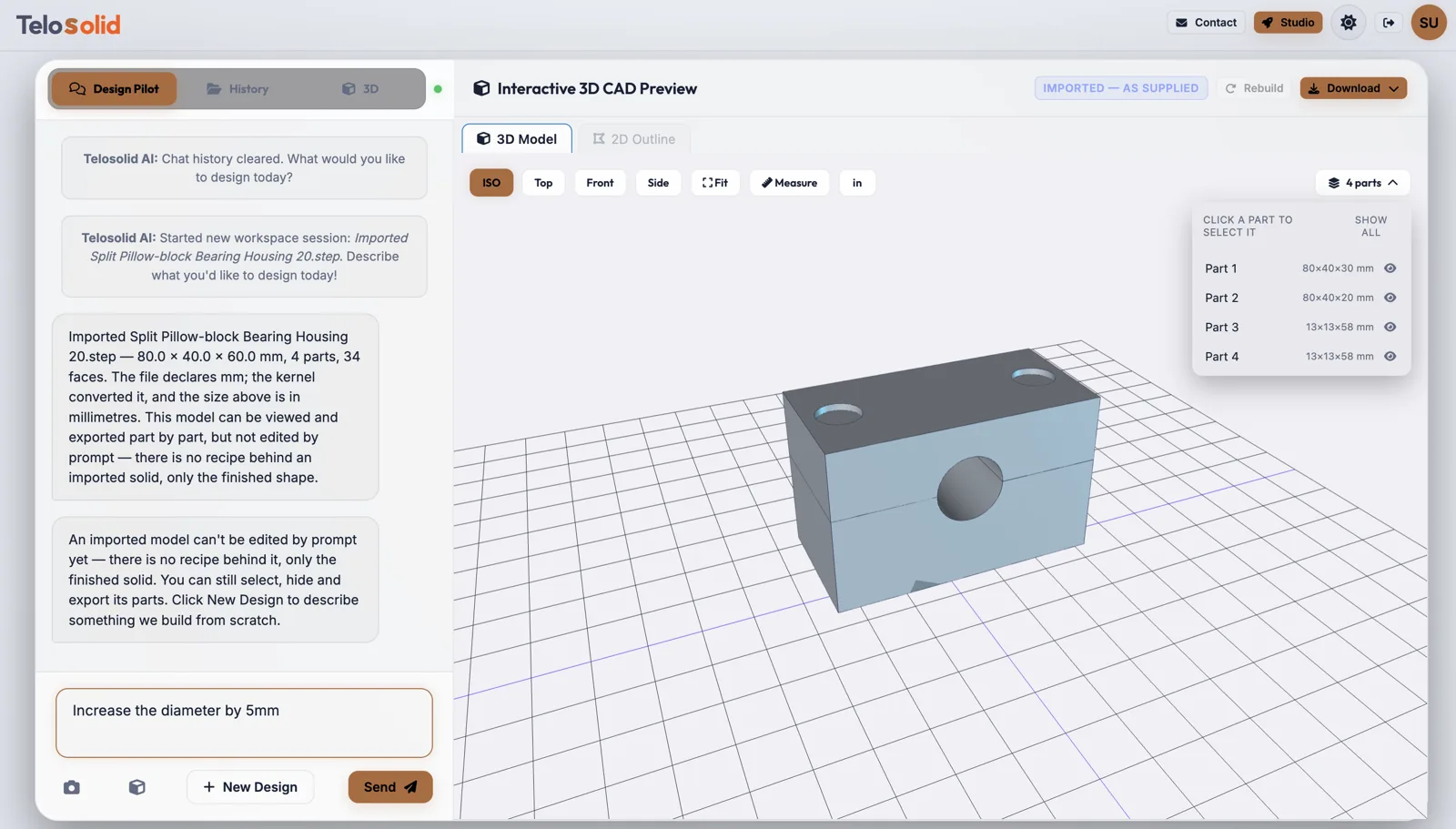
Import a STEP file from any CAD system
Bring in a .step or .stp file from SolidWorks, Fusion, Onshape or
anything else that exports STEP, and it opens in the same viewer, taken apart into the same parts
panel. It tells you what it found, including the units the file declares, which it converts to
millimetres and states back to you so a unit mix-up is visible at once.
From there you can measure it, hide and select parts, check whether two of them fit, and export any of them as STL, STEP, DXF or a dimensioned drawing. It is badged Imported — as supplied, so it is always clear which designs came from your own CAD system.
Getting the most out of it
- Name the parts in your prompt. “A base plate and a separate cover” produces two parts called what you called them.
- Select before you ask when a change is meant for one part.
- Check fit on parts that have to go together, before you have them made.
- Hide before you export when you want a subset.
- Open the Drawing tab with one part selected for a sheet of that part alone.